
GraphQL MCP
Salsa's GraphQL MCP Server
Salsa exposes its GraphQL API as a Model Context Protocol (MCP) server. This lets AI assistants (Claude, ChatGPT, Cursor, and any other MCP-capable client) read and update Salsa data directly as part of a conversation.
Endpoint
| Environment | Read-write | Read-only |
|---|---|---|
| Production | https://graphql-mcp.salsa.dev/mcp | https://graphql-mcp.salsa.dev/mcp/readonly |
| Sandbox | https://graphql-mcp.sandbox.salsa.dev/mcp | https://graphql-mcp.sandbox.salsa.dev/mcp/readonly |
Use a read-only URL unless you need the assistant to change data. See Read-only mode.
The server uses the Streamable HTTP transport.
Authentication
The MCP server uses OAuth 2.0 Bearer Tokens, like the rest of Salsa's APIs. See Authorization for every way Salsa issues tokens. Two of them apply to the MCP server, depending on whether a person is at the keyboard.
| Method | Use it when | Acts as | Token lifetime |
|---|---|---|---|
| User session | You connect an AI assistant yourself | You, with your Salsa permissions | Renewed automatically with a refresh token |
| OAuth client credentials | An agent, job or integration runs without a person | The OAuth client | 1 hour; your backend mints a new one before it expires |
To request MCP access, reach out to your Salsa account team. They will provision your credentials and share the connection details.
Interactive use: user sessions with refresh tokens
When you connect an AI assistant yourself, you sign in as a Salsa user and the assistant acts on your behalf through a user session. Once Salsa provisions MCP access for your account:
- Desktop clients (Claude Desktop, ChatGPT) handle the OAuth flow automatically when they first connect. No manual steps are required.
- CLI tools (Claude Code, Codex) require an explicit login step after registering the server. See the setup instructions for each tool below.
The session includes a refresh token, so your client renews its access token automatically and you stay connected without signing in again every hour, for as long as your session remains valid.
Unattended use: OAuth client credentials
For long-lived, unattended access, such as an agent, scheduled job or integration that runs without a person signing in, use OAuth Client Credentials. This is also the way to connect an external agent platform or MCP client on your behalf: it receives only short-lived access tokens, never your long-lived API Token. The OAuth client must have MCP access, which Salsa enables when it provisions the client for you. Ask your Salsa account team for a client with MCP access.
Your backend mints a 1-hour access token from the client's ID and secret, and sends it in the Authorization header of its requests to the MCP endpoint:
Authorization: Bearer ${ACCESS_TOKEN}Mint a new access token shortly before the current one expires to keep the session alive. Client credentials tokens have no refresh token.
Permissions and data access
The MCP server never grants more access than the credentials you connect with:
- With a user session, the assistant can see and change only what your Salsa user can see and change. If your account can't view an employer or perform an action, neither can the assistant.
- With OAuth client credentials, the assistant has the access Salsa provisioned for that OAuth client.
The MCP server can change data, not just read itSome tools create, update or delete records in Salsa. Changes made through the MCP server are real. Connect in read-only mode unless you need to make changes, start in sandbox, and review every write before you approve it. See Safe use.
Read-only mode
Read-only mode blocks every tool that can change data. Lookups and reports keep working. Sign-in is the same in both modes.
Turn it on in either of these ways:
- Connect to the read-only URL (recommended). Use the
/mcp/readonlyURL from the endpoint table instead of/mcp. This works in every client, including ones that can't send custom headers, such as Claude Desktop custom connectors. - Send a header. In clients and scripts that can set request headers, send
X-MCP-Readonly: trueto the/mcpURL.
Read-only mode is on if either the URL or the header asks for it, and nothing can turn it off for that connection. For example, sending X-MCP-Readonly: false to /mcp/readonly still connects in read-only mode. A header value of false doesn't turn read-only mode on; any other value does. Without the read-only URL or header, the connection can read and change data.
In read-only mode:
- Your assistant only sees tools that don't change data. The base tools and the reporting tools stay available.
- Calls to tools that change data fail with an error, even if the client calls the tool by name.
- The Salsa API enforces the same limit, so data can't change even if a tool call gets past the MCP server.
- Reports that need unmasked sensitive data, such as full government IDs, aren't available.
To use both modes, add two connections: one to the /mcp URL and one to the /mcp/readonly URL. Give them different names, such as salsa and salsa-readonly.
Installation
Add the Salsa MCP server to your client's configuration. The examples below use the production read-write URL. Replace it with the URL for the environment and mode you want: use a sandbox URL when testing against sandbox data, and a /mcp/readonly URL to connect in read-only mode. You can either:
- Add Salsa to your desktop AI assistant
- Add Salsa to your CLI tool
Add to your desktop client
Claude Desktop
For organization admins: In your Claude organization settings, go to Organization settings → Connectors and add https://graphql-mcp.salsa.dev/mcp as a custom connector. Salsa handles OAuth, so users are prompted to authorize through the Salsa dashboard on first use.
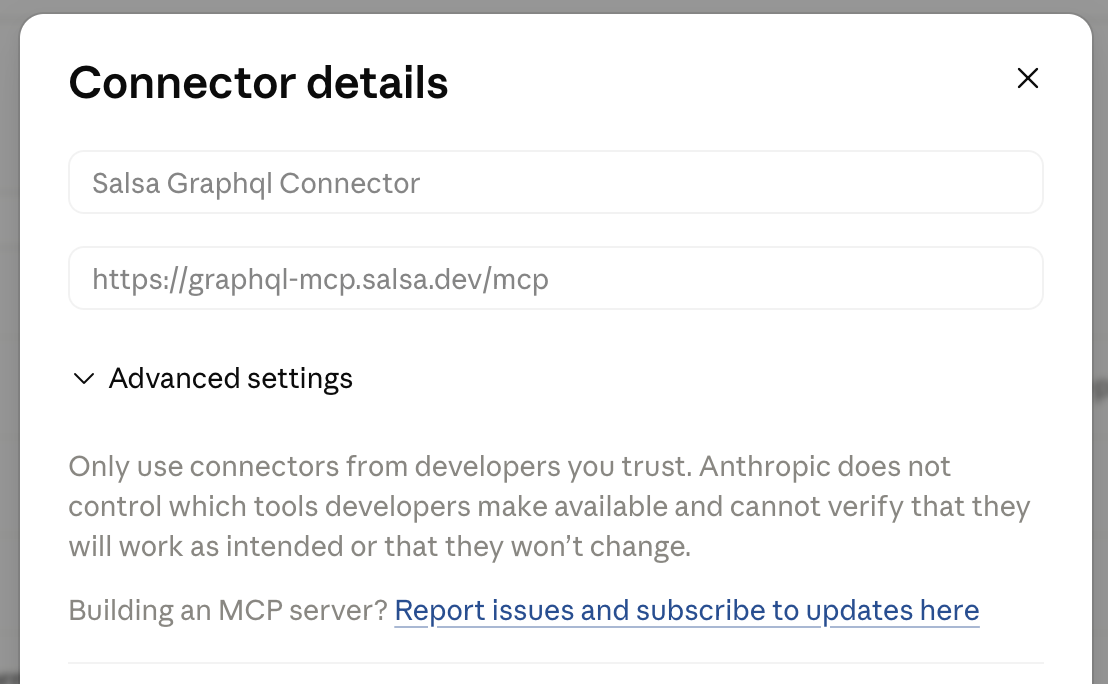
For individual users: In Claude Desktop, go to Customize → Connectors and add https://graphql-mcp.salsa.dev/mcp as a custom connector. Claude prompts you to authorize through OAuth on first connection.
ChatGPT
For organization admins: Enable Developer Mode in your ChatGPT workspace settings, then go to Workspace settings → Apps → Create. Add https://graphql-mcp.salsa.dev/mcp as the MCP server URL and publish the app so workspace users can select and authorize it.
For individual users: In ChatGPT on the web, turn on Developer Mode and create an app with https://graphql-mcp.salsa.dev/mcp as the MCP server URL. ChatGPT prompts you to authorize through OAuth on first connection. Whether you can create apps depends on your ChatGPT plan and, in a workspace, on your admin's settings. See OpenAI's guide for the current steps.
Add to your CLI
Claude Code
Run the following command to register the Salsa MCP server:
claude mcp add --transport http salsa https://graphql-mcp.salsa.dev/mcpBy default, the server is available only in the current project, for you. To change who can use it, add a --scope flag:
--scope projectshares the server with everyone working in the project by writing it to the project's.mcp.json. Run the command from the project's directory.--scope usermakes the server available to you in every project. Run the command from anywhere.
To connect in read-only mode, use the read-only URL:
claude mcp add --transport http salsa-readonly https://graphql-mcp.salsa.dev/mcp/readonlyAlternatively, send the read-only header to the /mcp URL:
claude mcp add --transport http salsa-readonly https://graphql-mcp.salsa.dev/mcp --header "X-MCP-Readonly: true"Then authenticate by opening Claude Code and running /mcp. Select the Salsa server and follow the OAuth prompt.
Codex
Run the following command to add the Salsa MCP server:
codex mcp add salsa --url https://graphql-mcp.salsa.dev/mcpOr add it manually to ~/.codex/config.toml:
[mcp_servers.salsa]
url = "https://graphql-mcp.salsa.dev/mcp"
Then authenticate:
codex mcp login salsaCursor
Edit or create .cursor/mcp.json at the root of your project (project-scoped) or ~/.cursor/mcp.json (global):
{
  "mcpServers": {
    "salsa": {
      "type": "http",
      "url": "https://graphql-mcp.salsa.dev/mcp"
    }
  }
}
Available tools
Salsa's MCP server is built on its GraphQL API. Every client gets four base tools that work against the full schema:
| Tool | What it does |
|---|---|
search | Searches the schema for types matching search terms and returns their complete definitions. |
introspect | Explores the schema starting from a type, such as the root Query or Mutation type. |
validate | Checks a GraphQL operation against the schema without running it. |
execute | Runs a GraphQL query and returns the result. It rejects mutations, so it can't change data. |
Salsa also provides pre-built tools that cover the most common use cases, such as finding an employer or worker, retrieving payroll details and generating reports. Some pre-built tools change data; they're the only way the MCP server can make changes, and they're hidden in read-only mode. This set grows over time as we package more common tasks. Your assistant lists the tools it can use when it connects. To see them, ask it "What Salsa tools do you have?"
When a pre-built tool doesn't return a field you need, the assistant can use the base tools to find that field in the schema and build its own query.
Limits
Requests made through the MCP server follow the same limits as the GraphQL API:
- Rate limits: see API rate limits. A single question can lead the assistant to make several requests, so a long-running agent can reach the limit sooner than you expect.
- Query depth and complexity: see GraphQL API limits.
Safe use
AI assistants act on what they read, and the MCP server gives them access to payroll and personal data. Follow these practices:
- Connect in read-only mode by default. Use a read-only URL unless the task requires changes, and keep a separate read-write connection for when it does.
- Keep tool approval on. Don't turn on settings that let your client run tools automatically. Review each tool call before you approve it, especially any that creates, updates or deletes data.
- Start in sandbox. Try new prompts and agents against the sandbox URL before you run them on production data.
- Be careful when you combine Salsa with other tools. Content from web pages, documents, email or other MCP servers can contain instructions written to manipulate the assistant (prompt injection). Avoid running Salsa in the same session as tools you don't trust, and be alert to tool calls you didn't expect.
- Verify what the assistant tells you. Assistants can misread data or draw wrong conclusions. Check important answers against Salsa before you act on them, and treat its recommendations as a starting point, not a payroll, tax or legal determination.
- Know where your data goes. Data the assistant reads from Salsa is sent to your AI provider and handled under that provider's terms. Review your client's data retention and model training settings before you connect.
- Protect your credentials. Keep OAuth client secrets in your backend and never paste them into a chat. Ask your Salsa account team to revoke a client you no longer use.
Example prompts
Once connected, you can ask your AI assistant questions in plain language. The assistant selects and calls the right tools.
Find a worker and view their recent payments:
"Find worker Jane Smith at Acme Corp and show me her last five payments."
Check partner-wide usage:
"Show me usage metrics for all employers in my partner account for January 2026."
Look up a worker's year-to-date totals:
"What are the year-to-date gross pay and net pay totals for worker ID
wr_xyz456?"
For prompts that do real support work, such as checking whether an employer is ready for its next payroll, see the prompt guide.
Troubleshooting
| Problem | What to do |
|---|---|
| Salsa tools don't appear in your assistant | Restart the client after adding the server. In Claude Code, run /mcp to check the server's status. Confirm the URL ends in /mcp or /mcp/readonly. |
| The sign-in window never opens | CLI tools need an explicit login: run /mcp in Claude Code or codex mcp login salsa in Codex. In a desktop client, disconnect and reconnect the connector. |
401 Unauthorized | With a user session, sign in again. With OAuth client credentials, the access token has likely expired: mint a new one. If the error continues, your account or OAuth client may not have MCP access yet. Contact your Salsa account team. |
| Data you expect is missing | Check that you connected to the right environment: the sandbox URL only returns sandbox data. Then check that your Salsa user or OAuth client has access to that employer or worker. |
| A tool that changes data is missing or fails | You're connected in read-only mode, through the /mcp/readonly URL or the X-MCP-Readonly header. To make changes, use a connection to the /mcp URL without the header. |
| A report is unavailable | Reports that need unmasked sensitive data, such as full government IDs, don't work in read-only mode. Use a read-write connection. |
| The assistant says a field is unavailable | A pre-built tool may not return that field. Ask the assistant to use search or introspect to find the field in the schema, then validate and execute its own query. |
| A query is rejected for depth or complexity | Ask the assistant to request fewer fields or split the question into smaller queries. See GraphQL API limits. |
429 Too Many Requests | You've reached the rate limit. Wait a few minutes before retrying, and narrow broad requests that cover many employers or workers. |