
Protecting sensitive actions with identity verification
Require an additional identity check (e.g. 2FA/MFA) before a user can perform a sensitive action in Salsa's embedded UI.
If your application already has an identity verification system (2FA, MFA, biometrics, or similar), you can integrate it with Salsa's embedded UI to protect sensitive actions. This allows you to bring your own verification flow while using Salsa's payroll components. Unmasking a bank account number or a government ID is a canonical example.
When to use this
Use this feature when:
- You want users to re-identify themselves immediately before a sensitive action (e.g. unmasking a bank account or government ID).
- You want to minimize how long a user holds a privileged token, stepping up only when needed.
- You have an existing 2FA/MFA provider and want to plug it into Salsa's embedded UI.
How it works
When a user attempts an action their current role does not grant, Salsa shows a verification prompt and emits a request-privileged-access event. The event payload inform you which action was taken and recommends role necessary permissions. Your application runs its verification flow, creates a token at the role the event recommends, and hands it back. Salsa resumes the action.
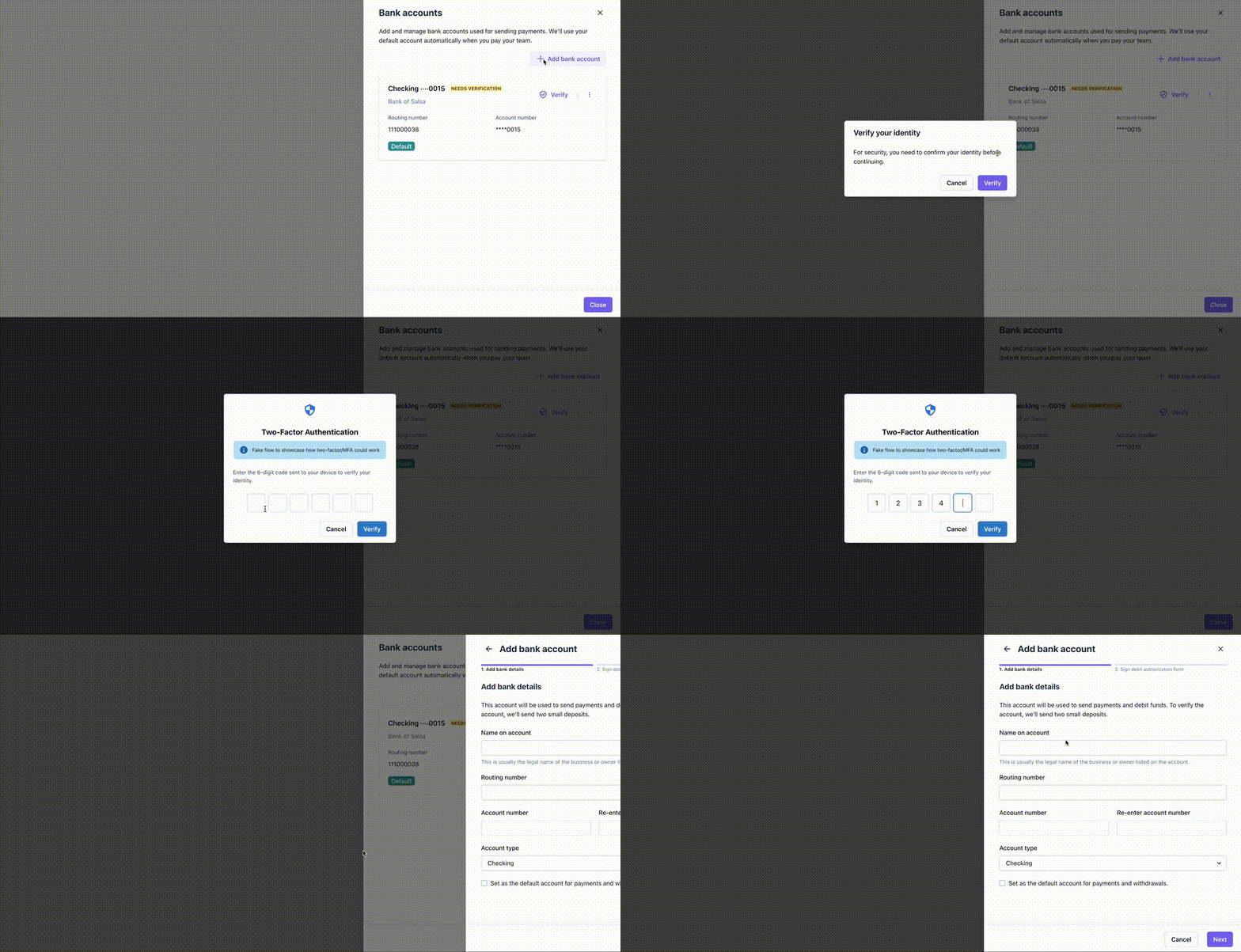
sequenceDiagram
    participant User
    participant SalsaUI as Salsa UI
    participant YourApp as Your App
    participant IDProvider as Identity Provider
    participant SalsaAPI as Salsa API

    User->>SalsaUI: Attempts protected action
    SalsaUI->>User: Shows verification prompt
    SalsaUI->>YourApp: request-privileged-access {action, recommendedRole, possibleRoles}
    YourApp->>User: Show verification flow
    User->>YourApp: Verify identity
    YourApp->>IDProvider: Verify
    IDProvider->>YourApp: Success
    YourApp->>SalsaAPI: Create user token per recommendedRole
    SalsaAPI->>YourApp: Return token
    YourApp->>SalsaUI: element.replaceUserToken(token)
    SalsaUI->>User: Proceeds with action
Protected actions
The action field on the event identifies which trigger fired. Its values appear as rows in the matrix in Roles and the step-up ladder.
Responsibilities
You are responsible for:
- Verification. Running your 2FA, MFA, biometrics, or other identity verification.
- Starting role tier. Deciding which role to issue when you create the user's initial token. Admin is the recommended default for embedded experiences.
- Token lifecycle. Creating, replacing, and downgrading user tokens, and deciding how long the user stays in the stepped up tier. See Step 4: Downgrade the user.
Salsa is responsible for:
- Emitting
request-privileged-accesswithaction,recommendedRole, andpossibleRoleswhen the user attempts a protected operation. - Rendering the verification prompt UI while your flow runs.
- Accepting the token your app provides and resuming the action.
Roles and the step-up ladder
Tokens carry a role and the role decides which actions are granted up front and which require step-up. The step-up ladder is basic → admin → super-admin: each tier grants everything the tier below does, plus more.
This matrix shows what each role grants on the employer lane. The worker lane (WORKER_BASIC, WORKER_ADMIN, WORKER_SUPER_ADMIN) follows the same shape, and onboarding variants (*_ONBOARDING_*) match their non-onboarding counterparts. See authorization for the full list and the API form used by createUserToken.
| Action | EMPLOYER_BASIC | EMPLOYER_ADMIN | EMPLOYER_SUPER_ADMIN |
|---|---|---|---|
add-employer-bank-account | ❌ | ✅ | ✅ |
add-worker-bank-account | ❌ | ✅ | ✅ |
update-worker-government-id | ❌ | ✅ | ✅ |
download-document | ❌ | ✅ | ✅ |
unmask-employer-bank-account-number | ❌ | ❌ | ✅ |
unmask-worker-bank-account-number | ❌ | ❌ | ✅ |
unmask-government-id | ❌ | ❌ | ✅ |
delete-worker-bank-account | ❌ | ❌ | ✅ |
download-worker-details-report-with-government-ids | ❌ | ❌ | ✅ |
update-worker-government-id covers editing a government ID's value. Setting whether an ID is required (MANDATORY or APPLIED_FOR) is not a privileged action and never triggers step-up — see authorization.
Explanation of what each action entails:
| Action | Description |
|---|---|
add-employer-bank-account | Adding a new employer bank account (e.g. employer onboarding, employer bank-accounts list) |
add-worker-bank-account | Adding a new worker bank account (e.g. worker pay-distribution setup, worker bank-accounts list) |
update-worker-government-id | Editing the value of a worker's government ID (e.g. worker personal-information form) |
download-document | Opening or downloading a document attached to the worker or employer (e.g. employer documents, worker documents) |
unmask-employer-bank-account-number | Revealing the full account number for an employer bank account (e.g. employer bank-accounts list) |
unmask-worker-bank-account-number | Revealing the full account number for an worker bank account (e.g. employer bank-accounts list) |
unmask-government-id | Revealing the full worker government ID (e.g. SSN) |
delete-worker-bank-account | Removing a worker bank account (e.g. worker pay-distribution setup) |
download-worker-details-report-with-government-ids | Including unmasked government IDs in the Worker Details report download (e.g. operations reports) |
Step-up means swapping the user's token for one at a higher tier so they can perform an action their current role does not grant.
How long the user stays in the stepped up tier is entirely up to you: it ends when you create a lower-role token and call element.replaceUserToken(...). We recommend keeping privileged access short-lived (for example, downgrading after around 5 to 15 minutes) and asking the user to step up again.
This feature is primarily oriented around the admin to super-admin step-up. For embedded experiences we recommend starting users at the admin tier; verification then gates the unmask actions in the bottom half of the matrix. The basic tier exists for partners who want stricter gating.
Edge cases and error handling
| Scenario | Suggested handling |
|---|---|
| User abandons flow | Call element.cancelRequestForPrivilegedAccess() to close the prompt and return the user to the previous view. |
| User fails verification | Offer a retry, or call element.cancelRequestForPrivilegedAccess() to close the prompt. |
| Token expires | If token expires the user will see permissions error. Make sure to refresh with a new token before the TTL expiration. |
| Token is downgraded to role of lower tier | The user will be prompted again to verify to resume the action. |
Implementation steps
Prerequisites
- Familiarity with Salsa authorization and token roles.
- An existing identity verification system (2FA/MFA provider, biometrics, etc.).
- Ability to create user tokens via the Credentials API.
Step 1: Create the user token
Create a user token with initial role tier. See Salsa authorization for the full list and the createUserToken shape.
Step 2: Enable step-up on the element
Set allowRequestForPrivilegedAccess: true when creating the element:
const element = salsa.elements.create("employer-bank-accounts", {
  userToken: token,
  allowRequestForPrivilegedAccess: true,
});
Step 3: Handle the request event
Listen for request-privileged-access. Run your verification workflow/UI, then create a token at event.recommendedRole.
element.on("request-privileged-access", async (event) => {
  // event.action          e.g. "unmask-government-id"
  // event.recommendedRole e.g. "EMPLOYER_SUPER_ADMIN"
  // event.possibleRoles   e.g. ["EMPLOYER_SUPER_ADMIN"]

  const verified = await runYourVerificationFlow();
  if (!verified) {
    element.cancelRequestForPrivilegedAccess();
    return;
  }

  const token = await createToken({ role: event.recommendedRole });
  element.replaceUserToken(token);
});
event.recommendedRole is the lowest role that satisfies the action. event.possibleRoles lists every role that would satisfy it, ordered low to high; pick from this list if you want a different role.
Both fields are optional. Salsa omits them when the user has no step-up path — for example a super-admin already at the top of their lane, or a role Salsa doesn't recognize. Check that event.recommendedRole is present before creating a token; if it's absent, there is no higher role to elevate to, so cancel the request and show your own messaging instead.
Step 4: Downgrade the user
Create a new token with a lower role and call element.replaceUserToken(...) .
We recommend downgrading proactively after a short time (around 5 to 15 minutes), before the token's own expiry. If the user needs to perform action again later, they can step up again.
setTimeout(async () => {
  const token = await createLessPrivilegedToken();
  element.replaceUserToken(token);
}, timeoutBeforeExpiry);
Complete end-to-end example
This is conceptual pseudo-code; treat it as a starting point and adapt it to your own codebase, conventions, and security best-practices.
let tokenRefreshTimer = null;

async function initializeElement() {
  const token = await createToken("EMPLOYER_ADMIN");

  const element = salsa.elements.create("employer-bank-accounts", {
    userToken: token,
    allowRequestForPrivilegedAccess: true,
  });

  element.on("request-privileged-access", (event) =>
    handleVerificationRequest(element, event),
  );

  element.mount("#bank-accounts-container");
  return element;
}

async function handleVerificationRequest(element, event) {
  try {
    // event.action is e.g. "unmask-government-id" or "add-worker-bank-account"
    const result = await showMFAModal({ action: event.action });
    if (result.cancelled || !result.success) {
      element.cancelRequestForPrivilegedAccess();
      return;
    }

    const { token, expiresAt } = await createToken(event.recommendedRole);
    element.replaceUserToken(token);
    scheduleDowngrade(element, expiresAt);
  } catch (error) {
    element.cancelRequestForPrivilegedAccess();
    console.error("Verification error:", error);
  }
}

function scheduleDowngrade(element, expiresAt) {
  if (tokenRefreshTimer) clearTimeout(tokenRefreshTimer);

  const msUntilExpiry = new Date(expiresAt) - Date.now();
  const downgradeIn = Math.max(0, msUntilExpiry - 30_000);

  tokenRefreshTimer = setTimeout(async () => {
    const token = await createToken('EMPLOYER_ADMIN');
    element.replaceUserToken(token);
  }, downgradeIn);
}

async function createToken(role) {
  const response = await fetch("/api/salsa/token", {
    method: "POST",
    headers: { "Content-Type": "application/json" },
    body: JSON.stringify({
      role,
      ttlMinutes: role.endsWith("SUPER_ADMIN") ? 5 : 60,
    }),
  });
  return response.json();
}

const element = await initializeElement();
Disabled controls and tooltips
Rather than hide a control the user's role can't use, some surfaces (such as the government-ID value input and the pay-distribution "Create new account" option) show it disabled with a tooltip explaining why and what to do next. The tooltip depends on the user's situation:
| Situation | What the user sees |
|---|---|
| Step-up is available | The control is enabled and starts your verification flow when used. |
| The role could step up, but step-up isn't enabled | Disabled, with a tooltip to ask an administrator or support to enable it. |
| The role can never perform the action | Disabled, with a tooltip that a higher-permission role is required. |
Disabled controls are display-onlyThey explain a block; they don't create one. Every sensitive action is enforced at the API regardless of what the UI shows, so a request without the required role is always rejected.
Without verification enabled
Setting allowRequestForPrivilegedAccess: false keeps the user fully scoped to their role with no step-up path. This is the default setting:
- Unmask buttons are hidden entirely from admin users. The super-admin step-up path is not exposed.
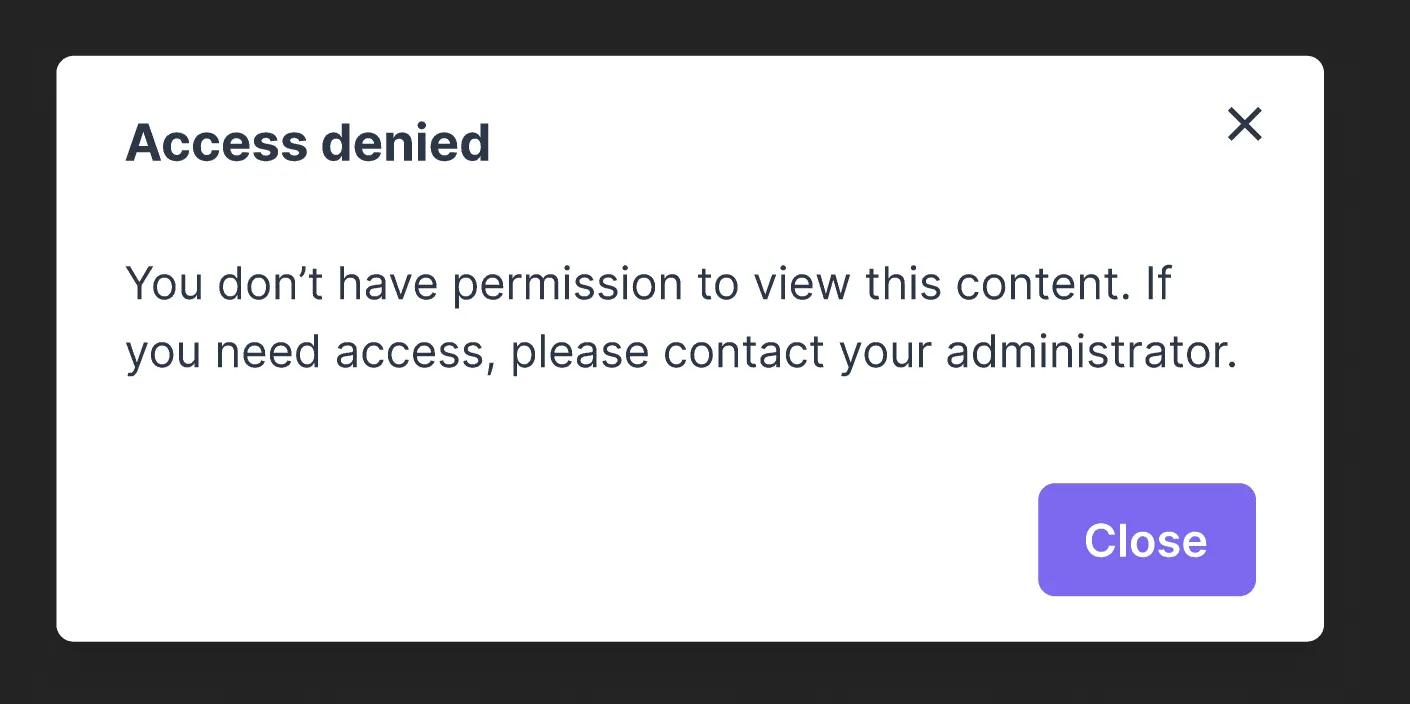
- Gated actions on basic roles (add bank account, download document) show a "no access" dialog.
Updated 3 months ago